

Here are instructions for running a wired Speed Test:
Restart your router and other devices
As simple as it sounds, restarting your equipment is a good first step. Unplug your Router (and PoE power device — if you have one), and reboot your computer. Count to 10, then turn everything back on. This will often resolve issues — especially after a power outage.
Select your computer to test
Use a newer model desktop or laptop computer. Older hardware may slow your speeds. Don’t use a mobile phone or tablet.
For most Condos and Apartments
Your router’s WAN port should be connected to the Sail outlet. Connect your router to your computer. Plug an Ethernet cable from your router’s LAN port to your computer.
PLEASE NOTE: You will need an ethernet cable (it looks like a really thick old-school phone cable) to run this test properly. Additionally, you must have an ethernet port on your computer or use an ethernet adapter to connect the cable from your router to your computer. Most modern computers are not built with ethernet ports. Consult this guide to shopping for an adapter.
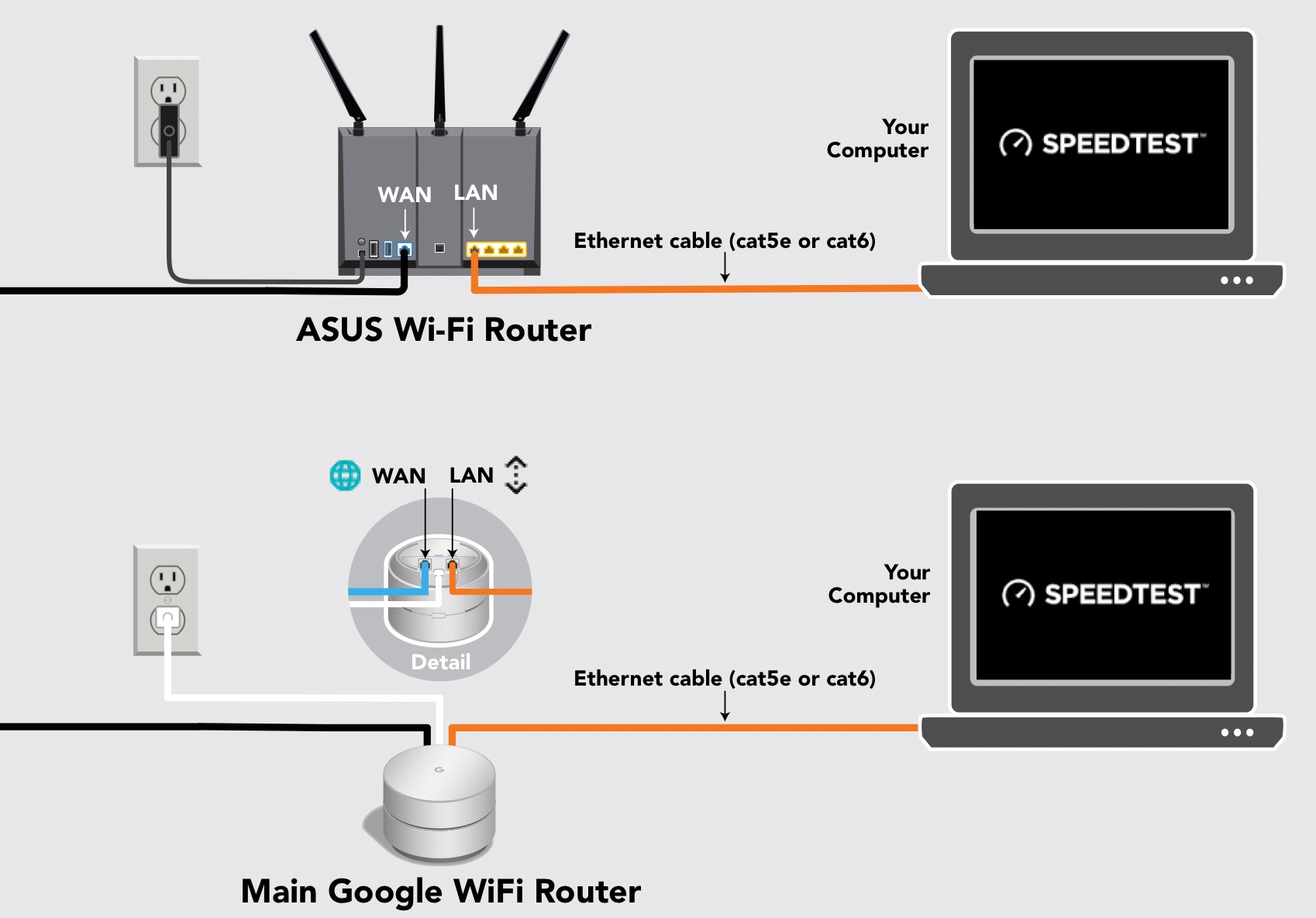
For most Single Family Homes and Businesses
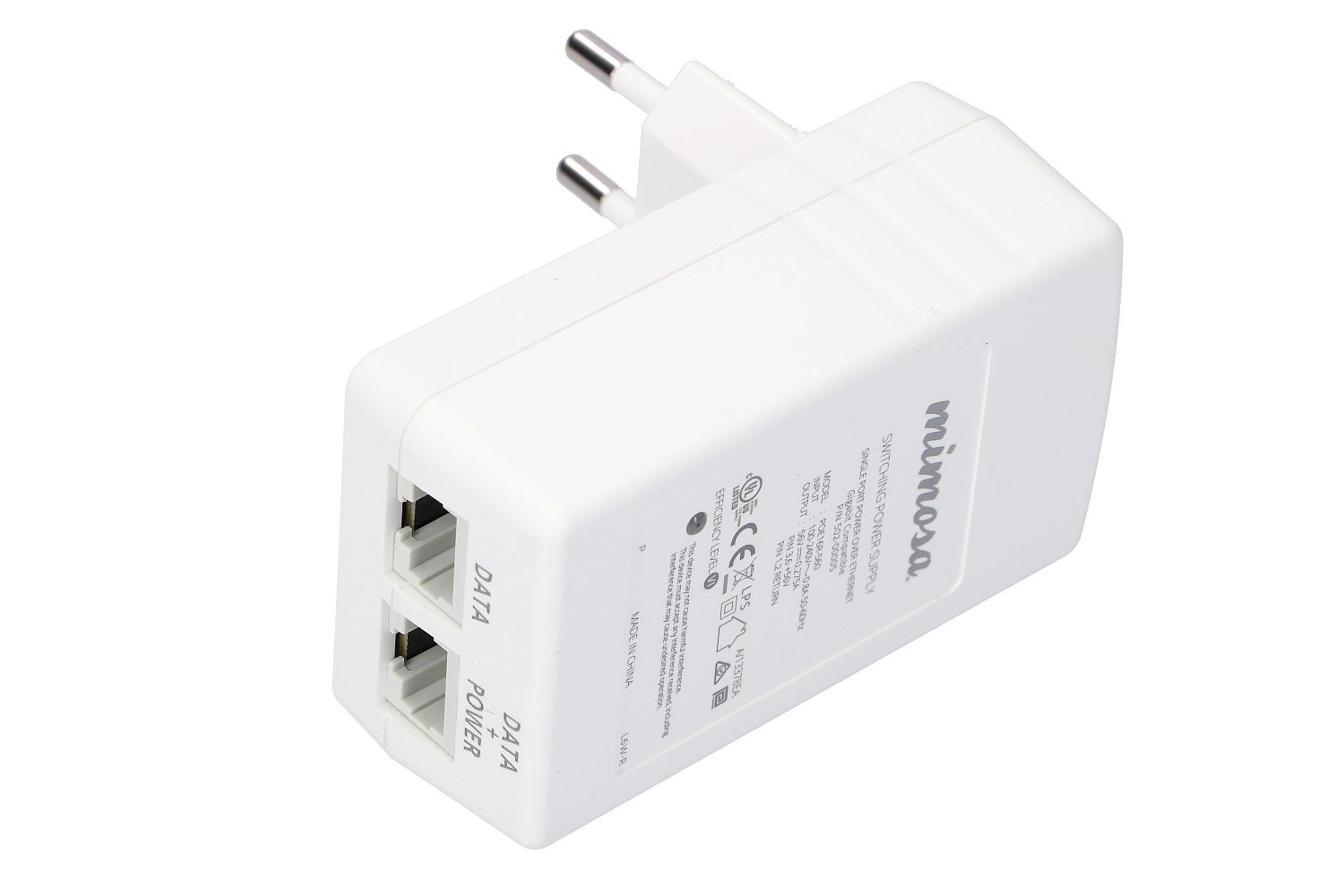
Sail probably provided a “PoE injector” (Power over Ethernet) when we installed your service. The PoE injector is a small box that powers the antenna and connects to your ethernet cable. Your router’s WAN port should be connected to the PoE power device. Connect your router to your computer. Plug an Ethernet cable from your router’s LAN port to your computer.
This is the PoE Injector we use:
Download the Ookla Speedtest™ App
Download the Ookla desktop app for your computer (not the mobile app for phones).
The desktop app is more reliable than using your browser and it will auto-select a server to test your connection.
Now, run a “wired” speed test
Be sure to turn off your Wi-Fi on your computer prior to starting your speed test. If your speeds are still slow, try connecting to other local servers such as “Mimosa Santa Clara, CA.” Test again with other servers. Some servers create a bottleneck at the high speeds offered by Sail Internet. A wired speed test can diagnose more than just speed issues! We want to see your results.
Send your results to us!
Email your results to SailSupport@sailinternet.com. Rest assured, we will get your internet connection back on track. If necessary, we will send a technician to your home to resolve the issue.